- Author
- app-hacks
- Published
- Updated
- Reviewed
Cloudflare Pages / DNS / Astro
Connecting a Domain Registered with XServer Domain to Cloudflare DNS and Pages
A record of checking the registrar, Cloudflare DNS, Cloudflare Pages, and Astro's canonical URL setting separately.
This site uses a domain registered with XServer Domain, while Cloudflare DNS and Cloudflare Pages handle DNS and hosting. Domain registration, authoritative DNS delegation, and attaching a custom domain to Pages can look like similar operations, but each is handled in a different place. Keeping them separate prevents DNS changes and changes to the canonical URLs generated by Astro from being treated as one task.
Responsibilities to keep separate when connecting a domain
At the registrar, delegate the domain to the nameservers Cloudflare specifies. Once the zone is active in Cloudflare, add the custom domain to the Pages project. Nameserver values and dashboard wording can change, so this article does not reproduce them. During setup, compare the target domain and values shown in each screen directly.
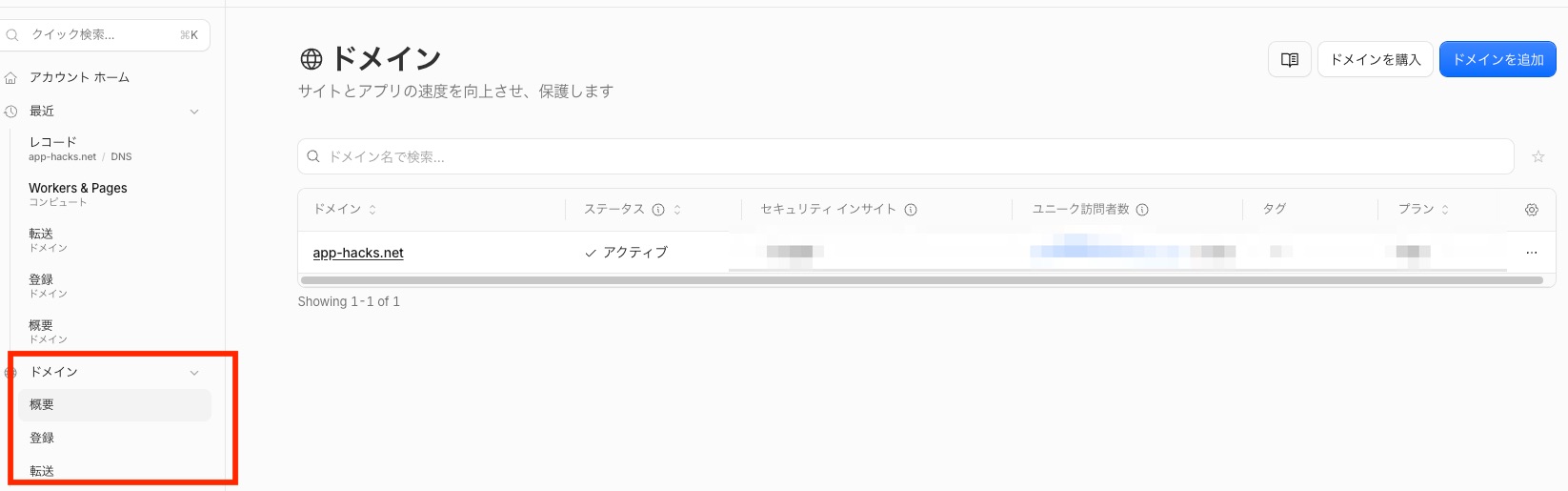
An example of the Cloudflare domain list showing app-hacks.net as active. This shows the zone’s status only; it does not show the Pages connection, DNS records, certificate, or redirect configuration.
Confirm HTTPS together with the Pages deployment status. Certificate details and issuance dates are not recorded in this repository, so this article does not assert them. Check that the HTTPS canonical URL opens in a browser, and verify the actual configuration before deciding how to standardize HTTP and www. This site’s canonical URL baseline is https://app-hacks.net.
Align Astro configuration with the public URL
Connecting DNS alone is insufficient when Astro points at another host, because canonical URLs and the sitemap will diverge. astro.config.mjs and the site constants use the same canonical URL.
// astro.config.mjs
export default defineConfig({
  site: 'https://app-hacks.net',
  integrations: [sitemap()],
});
site is the basis for the Sitemap integration and absolute URL generation. The SEO head builds canonical URLs from the site constants, and public/robots.txt specifies the sitemap on the same host. After configuration, compare the URLs in the home page, an article, sitemap-index.xml, and robots.txt to ensure that host, HTTPS, and trailing-slash policies agree.
Common pitfalls and ways to check them
Do not guess an IP address for a DNS record or leave an old host in a canonical URL. Use the value shown in the Pages custom-domain setup, then update external links after propagation. Decide how to handle www from the actual redirect, canonical URL, and sitemap as one set, not from DNS alone.
Before publishing, run npm run build and inspect the canonical URL and sitemap in the generated files. After publishing, request the HTTPS URLs and check that traffic is not split across unintended hosts.
A connection is not complete merely because a DNS screen shows a setting. Treat it as complete when visitors can reach the canonical URL and the site’s metadata points to the same URL. DNS, Pages, and Astro have separate responsibilities, so do not mark the work complete after changing only one of them.
Resolving these details before sharing URLs in articles or social posts limits the work needed if the host changes later.
Official documentation and related article
- Cloudflare docs: Custom domains — Reference for checking the Pages custom-domain setup.
- Astro docs: Configuration Reference — Reference for the
sitesetting. - Designing reusable SEO meta tags and OGP components in Astro — Covers the implementation that centralizes canonical URLs.