- Author
- app-hacks
- Published
- Updated
- Reviewed
Git / Commits / Workflow
How to Commit Only Selected Files in Git
Stage only selected files and inspect the staged diff to prevent unrelated changes from entering a Git commit.
How to Commit Only Selected Files in Git
One working tree often contains more than one task. A quick git add . or git add -A can put unfinished work, local helper files, or unrelated fixes into the next commit. The safe goal is not simply to make a commit quickly; it is to be able to explain every change that the commit contains.
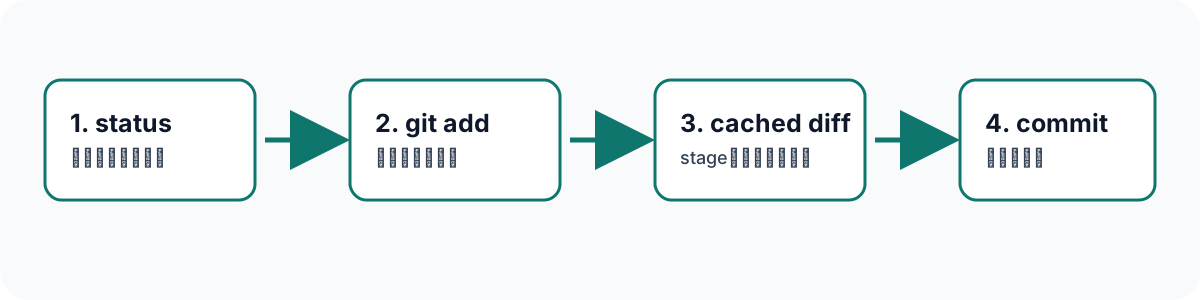
This workflow uses four steps: inspect the working tree, stage explicit paths, review the staged diff, and inspect the completed record.
Inspect the Whole Working Tree First
Start with a compact list of modified, deleted, staged, and untracked files.
git status --shortThe left status column represents staged changes and the right column represents unstaged changes. For example, M file.md is modified only in the working tree, while M file.md is already staged. ?? marks an untracked file. Check that list before staging so generated files and local configuration are not mistaken for the task at hand.
Having unrelated changes is normal. Staging them without noticing is the problem. When the list is long, identify the files that belong to the current task before running another Git command.
Stage Explicit Paths
git add src/content/blog/20-git-selective-commit-cloudflare-pages.md
git add TASK/draft-articles-20-29-ja-en-2026-09-26.md
Naming individual files makes the boundary of the commit visible. A directory path can include another task that happens to be under the same folder. When several files belong together, list only those paths.
If only part of a file should be committed, git add -p offers interactive staging.
git add -p src/components/ArticleCard.astroUse it only when the displayed patch hunks are clear. File-level commits are usually easier to review and revert.
Read the Staged Diff
Ordinary git diff shows changes that are not staged. To review what the commit will contain, use --cached.
git diff --cached --stat
git diff --cached
The stat is a quick check for an unexpected number of files or lines. Then read the complete staged diff. For a metadata edit, make sure an entire article body is not included accidentally. For a configuration change, make sure that no environment-specific value or secret was added.
This is the final boundary before a history entry is created. A mistake can be fixed later, but after a shared branch is pushed it can trigger reviews, deployments, or follow-up work that did not belong to the original task.
Unstage a File Without Losing Its Edit
An accidental staged file does not require discarding its worktree content.
git restore --staged path/to/fileRun git status --short and git diff --cached again, then stage the intended paths. Do not confuse this with git restore path/to/file, which can replace the working-tree edit itself.
Confirm the Completed Record
Commit only after the staged diff is understood.
git commit -m "fix: correct article metadata"
git show --stat --oneline HEAD
Use a concise message that explains the change. Inspecting HEAD confirms that the record contains only the expected files before it is pushed or used to trigger a deployment. This fixed sequence—inspect, stage explicit paths, review, and confirm—keeps commits reliable even when a working tree contains several tasks.